
Is Notepad Part of Windows Accessories?
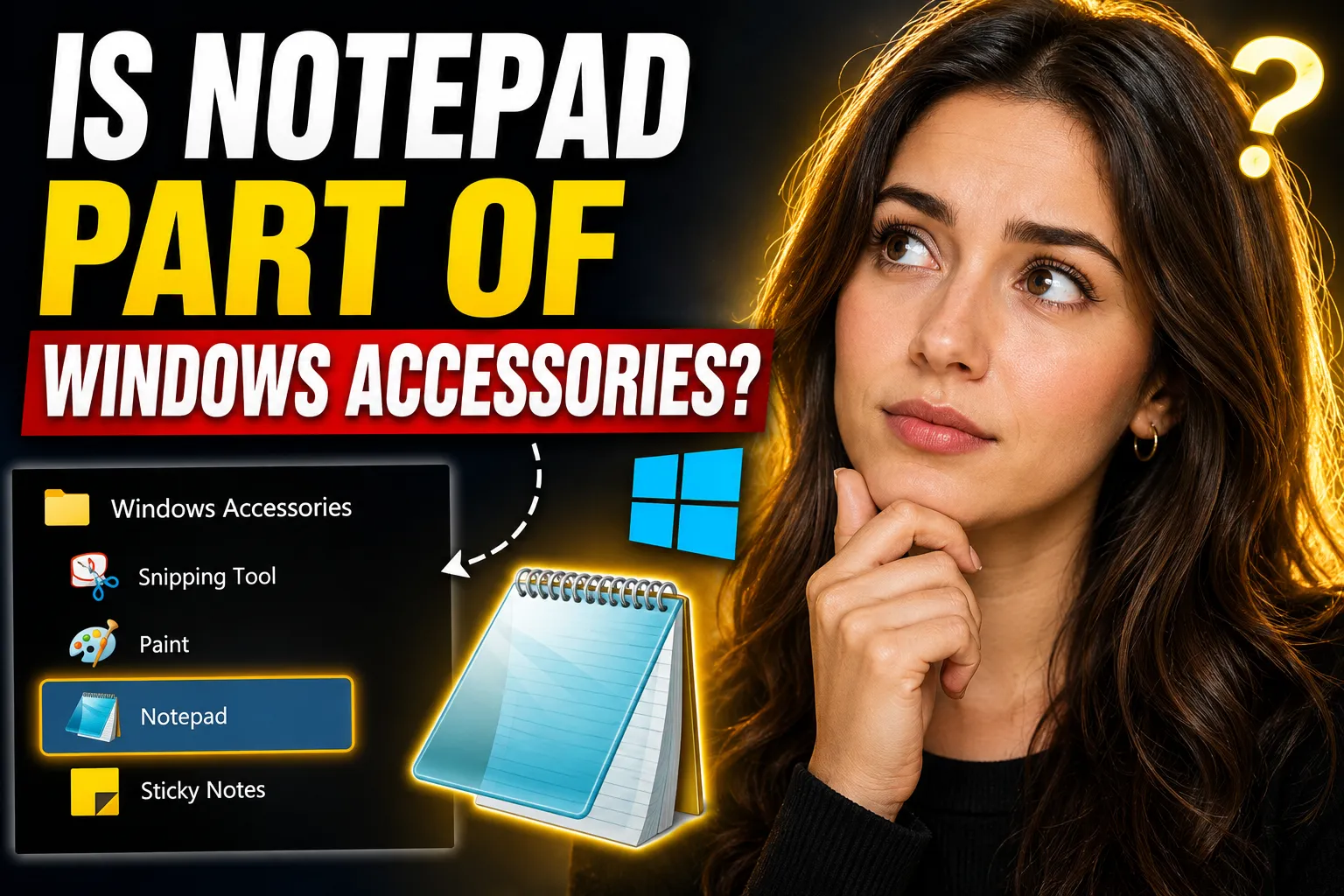
If you've ever searched for Notepad on a Windows computer, you may have wondered: Is Notepad part of Windows Accessories?
The short answer is yes—historically, Notepad was included within the Windows Accessories folder in many versions of Windows. However, Microsoft's approach has changed over time, and in newer versions of Windows, Notepad is no longer always grouped under the traditional Windows Accessories folder.
This article explains where Notepad fits within Windows, how its placement has changed across versions, and what alternatives are available if you need cloud-based note-taking, online access, or collaborative features.
Table of Contents
- What Is Notepad?
- Is Notepad Part of Windows Accessories?
- Understanding Windows Accessories
- Where to Find Notepad in Different Windows Versions
- Why Microsoft Changed the Location of Notepad
- What Notepad Is Used For
- Limitations of Notepad
- Modern Alternatives to Notepad
- Using an Online Notepad Instead of Desktop Notepad
- When a Collaborative Whiteboard Makes More Sense
- Notepad vs Online Note-Taking Tools
- Frequently Asked Questions
- Conclusion
What Is Notepad?
Notepad is a simple text editor that comes built into Microsoft Windows. It allows users to create, edit, and save plain text files without additional formatting.
Unlike advanced word processors, Notepad focuses on simplicity. It is commonly used for:
- Taking quick notes
- Editing text files
- Writing code snippets
- Creating configuration files
- Removing formatting from copied text
- Drafting simple documents
Because it is lightweight and easy to use, Notepad has remained one of the most recognizable Windows applications for decades.
Is Notepad Part of Windows Accessories?
Direct Answer
Yes, Notepad was traditionally included as part of Windows Accessories in many versions of Windows, including Windows 7 and earlier versions.
However, in modern Windows releases such as Windows 10 and Windows 11, Microsoft has reorganized built-in applications. While Notepad remains a standard Windows application, it is not always displayed under the Windows Accessories folder in the same way as older versions.
As a result, the answer depends on which version of Windows you are using.
| Windows Version | Part of Windows Accessories? |
|---|---|
| Windows XP | Yes |
| Windows Vista | Yes |
| Windows 7 | Yes |
| Windows 8 | Usually grouped with accessories |
| Windows 10 | Sometimes categorized differently |
| Windows 11 | Typically treated as a standalone app |
The application itself has not disappeared. Only its organizational placement has evolved.
Understanding Windows Accessories
Windows Accessories was originally a collection of small utility programs bundled with Microsoft Windows.
These utilities provided common functionality for everyday users without requiring additional software installations.
Common Windows Accessories applications included:
- Notepad
- Paint
- WordPad
- Character Map
- Snipping Tool
- Calculator
- Remote Desktop Connection
- Sticky Notes
The purpose of Windows Accessories was to keep useful tools organized in one location.
For years, users could access these tools through:
Start Menu → All Programs → Accessories
This made it easy to find essential utilities without searching through multiple folders.
Where to Find Notepad in Different Windows Versions
Windows XP
In Windows XP, Notepad was located inside the Accessories folder.
Path:
Start Menu → Programs → Accessories → Notepad
This was the most common location for many years.
Windows 7
Windows 7 continued the same organizational structure.
Path:
Start Menu → All Programs → Accessories → Notepad
Many users became familiar with this layout and still associate Notepad with Windows Accessories today.
Windows 10
Microsoft began reorganizing applications in Windows 10.
You could still find Notepad by:
- Searching "Notepad" from the Start menu
- Accessing Windows Accessories
- Pinning Notepad to the taskbar
Depending on updates, Notepad sometimes appeared separately from traditional accessory groupings.
Windows 11
Windows 11 places greater emphasis on search and app-based navigation.
To open Notepad:
- Click Start
- Type "Notepad"
- Select the application
In many installations, users access Notepad directly through search rather than browsing Accessories folders.
Why Microsoft Changed the Location of Notepad
Microsoft's interface philosophy has changed significantly over the years.
Earlier Windows versions relied heavily on nested menus and categorized folders.
Modern versions prioritize:
- Fast search
- Simplified navigation
- Personalized app access
- Taskbar shortcuts
- Cloud integration
Because users increasingly rely on search rather than folder navigation, the Accessories folder became less important.
This shift explains why many built-in tools now appear as standalone applications rather than being grouped under a traditional Accessories category.
What Notepad Is Used For
Despite its simplicity, Notepad remains useful.
Quick Note-Taking
Many users launch Notepad to jot down ideas, reminders, or temporary information.
Editing Plain Text Files
Notepad can open and edit:
- TXT files
- Log files
- Configuration files
- Script files
Coding and Development
Developers often use Notepad for:
- HTML files
- CSS snippets
- JavaScript testing
- Configuration editing
Removing Formatting
A common trick is pasting formatted text into Notepad first to remove unwanted formatting before moving it elsewhere.
Limitations of Notepad
Although Notepad remains useful, it has several limitations.
No Cloud Storage
Traditional Notepad saves files locally unless users manually upload them to cloud storage services.
No Real-Time Collaboration
Multiple users cannot edit the same note simultaneously.
Basic Organization
Notepad lacks:
- Folders
- Tags
- Searchable note collections
- Workspaces
Limited Formatting
Notepad supports only plain text.
You cannot easily add:
- Rich formatting
- Images
- Diagrams
- Tables
- Embedded content
These limitations have encouraged many users to explore online alternatives.
Modern Alternatives to Notepad
Today, users often need more flexibility than desktop Notepad can provide.
A growing number of people use browser-based note-taking applications because they offer:
- Access from any device
- Cloud storage
- Sharing capabilities
- Automatic saving
- Collaboration tools
One example is Write Notes, an online note-taking platform designed for quick access and ease of use.
Users can access it through:
Unlike traditional desktop Notepad, online solutions allow notes to be available from multiple locations without carrying files manually between devices.
Using an Online Notepad Instead of Desktop Notepad
For users who frequently switch between devices, an online notepad can be more convenient than the traditional Windows version.
A browser-based solution eliminates many common limitations.
Benefits include:
- No installation required
- Works on Windows, Mac, Linux, and mobile devices
- Accessible anywhere with internet access
- Easy sharing
- Automatic saving
Users looking for a browser-based text editor can explore the free online notepad available at:
http://www.writenotes.net/free-online-notepad
This type of tool provides the simplicity many people appreciate in Notepad while adding the convenience of web-based access.
When an Online Notepad Makes Sense
An online notepad is especially useful when:
- Working from multiple computers
- Accessing notes from school and home
- Collaborating with teammates
- Creating quick drafts
- Saving temporary information
For many users, it combines the simplicity of classic Notepad with the accessibility expected from modern software.
When a Collaborative Whiteboard Makes More Sense
Text notes are not always the best way to communicate ideas.
Sometimes visual collaboration is more effective.
Examples include:
- Brainstorming sessions
- Project planning
- Mind mapping
- Team workshops
- Online teaching
- Design discussions
In these situations, a collaborative whiteboard can be more useful than a text editor.
An example is the online collaborative whiteboard available at:
http://www.writenotes.net/online-collaborative-whiteboard
A shared whiteboard allows participants to:
- Draw ideas
- Organize concepts visually
- Work together in real time
- Create diagrams
- Plan workflows
This capability extends far beyond what traditional Notepad was designed to accomplish.
Notepad vs Online Note-Taking Tools
The best choice depends on your needs.
| Feature | Windows Notepad | Online Notepad |
| Built into Windows | Yes | No |
| Installation Required | No | No |
| Cloud Access | No | Yes |
| Collaboration | No | Often Yes |
| Device Independence | Limited | Excellent |
| Automatic Saving | Limited | Common |
| Sharing | Manual | Easy |
| Visual Collaboration | No | Available in some tools |
Choose Notepad If
You need:
- A lightweight text editor
- Offline access
- Basic text editing
- Quick local notes
Choose an Online Notepad If
You need:
- Cross-device access
- Team collaboration
- Cloud-based storage
- Shared workspaces
Common Misconceptions About Notepad
Notepad Is Not a Word Processor
Many beginners confuse Notepad with Microsoft Word.
Notepad handles plain text only.
Notepad Has Not Been Removed
Some users assume Notepad disappeared because they cannot find it under Windows Accessories.
In reality, the application still exists in modern Windows versions.
Notepad Is More Powerful Than Many People Realize
Although simple, Notepad remains useful for:
- Programming tasks
- Log analysis
- Quick note-taking
- Configuration management
Its strength comes from simplicity rather than feature richness.
FAQ
Is Notepad still included with Windows?
Yes. Notepad continues to be included with modern versions of Windows, including Windows 10 and Windows 11.
Why can't I find Notepad under Windows Accessories?
Microsoft reorganized built-in applications in newer Windows releases. Searching for "Notepad" through the Start menu is often the fastest method.
Is Notepad free?
Yes. Notepad is included with Windows at no additional cost.
What is the difference between Notepad and WordPad?
Notepad supports plain text only, while WordPad offers basic formatting features such as fonts, styles, and paragraph formatting.
Can I use Notepad online?
Traditional Windows Notepad is a desktop application. However, online alternatives provide similar functionality through a web browser.
What is the advantage of an online collaborative whiteboard?
A collaborative whiteboard allows multiple users to visualize ideas together, making it useful for brainstorming, planning, teaching, and teamwork.
Conclusion
So, is Notepad part of Windows Accessories?
Historically, the answer is yes. Notepad was a core component of the Windows Accessories collection and remained there for many years. In modern Windows versions, Microsoft has changed how built-in applications are organized, but Notepad continues to be included as a standard Windows tool.
For basic offline text editing, Notepad remains a fast and reliable choice. However, users who need cloud access, sharing capabilities, or collaborative workflows may benefit from modern browser-based solutions such as Write Notes, its free online notepad, or an online collaborative whiteboard.
The right tool depends on how you work. If you simply need a lightweight text editor, Notepad is still highly effective. If you need accessibility across devices and teamwork features, modern web-based note-taking platforms provide capabilities that traditional desktop applications were never designed to offer.

Alex Chen
I am a Digital Systems Architect and productivity specialist dedicated to building frictionless workflows. With over 2,000 hours of deep-work experimentation, I've mastered the art of transforming cluttered Write Notes workspaces into high-output engines.Having successfully migrated over 10,000 users into streamlined digital systems, I focus on the intersection of Personal Knowledge Management (PKM) and automated task architecture. When I'm not auditing the latest productivity tools, I manage a 1,500-note research library and consult for teams looking to reclaim their focus.